A video call freezes in the study, but the television keeps streaming. Or every device loses access at once. Both experiences get called “bad Wi-Fi”, yet they give someone investigating the problem different places to start.
You do not need to buy another booster or become a network technician before asking for help. Start with a few observations you can repeat and explain. They may help you solve a simple problem yourself, or make a conversation with your provider or a local technician more useful.
Start here
What changes when the connection drops?
Choose one comparison. A pattern is a clue, not a diagnosis.
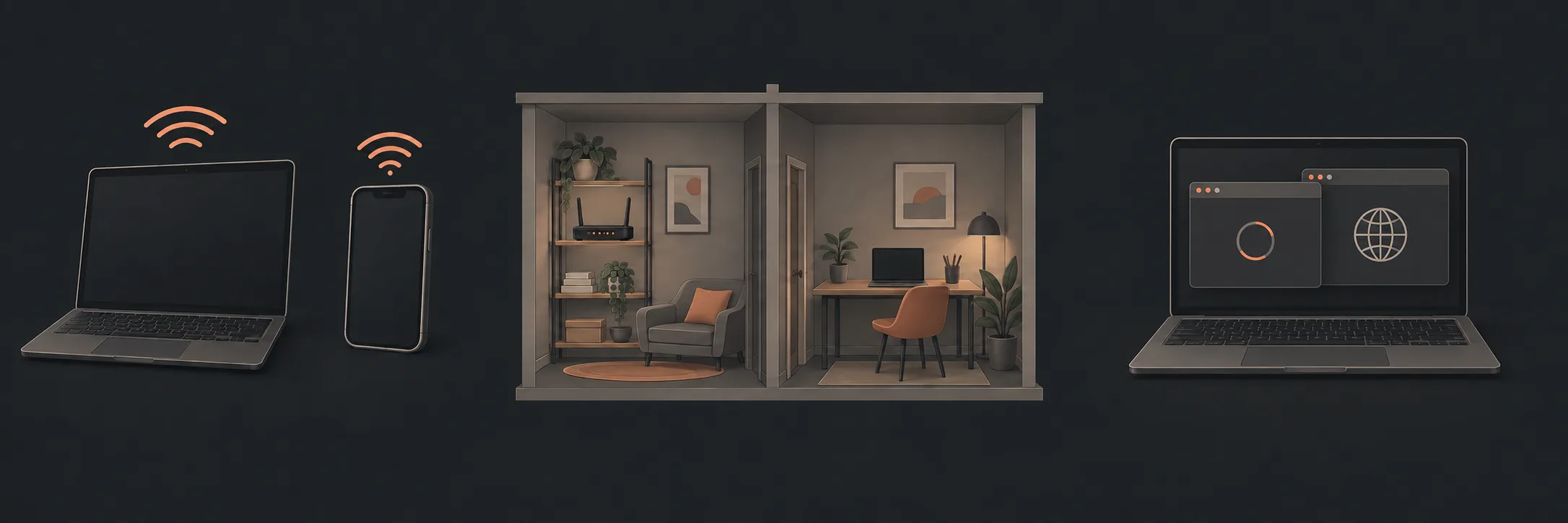
Separate the parts of the connection
Your device connects over Wi-Fi to your home router. The router connects your home network to your internet service. The website or application you are using is another part of the experience. A connection to the local network does not necessarily mean the internet is available; an individual app can also have trouble while the connection works. Microsoft explains these connection states.
- Device
- Wi-Fi
- Router
- Internet service
- Website or app
This map helps describe the symptom. It is not a test that identifies a faulty component.
Make a small comparison
Choose one familiar activity, such as opening an ordinary website. Note what happened, then compare one thing at a time:
| Comparison | Useful question to record |
|---|---|
| Another device on the same home Wi-Fi | Does it have the same problem at about the same time? |
| The same device in another room | Does the experience change near the router? |
| Another familiar website or app | Is the difficulty limited to one service? |
| The same activity later | Is the problem continuous or intermittent? |
Microsoft recommends checking another device on the same network as part of troubleshooting. That comparison is a clue, not proof that a particular device needs replacing. Make sure you are comparing the same home Wi-Fi rather than a phone's mobile connection. See Microsoft's troubleshooting guidance.
Do not spend an afternoon changing everything. Two or three clear observations are more useful than a long list of adjustments whose effects you cannot separate.
For a step-by-step comparison and help describing the result, read Wi-Fi trouble on one device or every device?
When a speed test is useful
A connection test gives you something to compare. nbn suggests testing beside the router, comparing with an Ethernet connection to the router where practical, and testing Wi-Fi in other rooms. Differences between rooms can point toward a coverage or placement issue. Read nbn's test and interpretation guidance.
Treat the result as an observation from that moment. Avoid turning one number into “the router is broken” or “we need a faster plan”. Bring your notes to the provider or technician so the result can be considered with the symptoms.
Keep a short dropout diary
Copy this into a note on your own device or onto paper:
What to do with the pattern
If the problem follows a room, mention that. If it affects several devices together, say so. If only one program fails, name it. These are useful starting points for investigation; none obliges you to buy equipment.
If your observations point to a coverage or home-layout question rather than an unexplained dropout, continue to choose between mesh Wi-Fi, another access point and router position. That guide owns the design and upgrade decision; this one remains the place to describe symptoms.
If ordinary computer tasks also feel slow, our fix, upgrade or replace guide can help you organise that separate question.
For a side-by-side comparison, read Is your computer slow, or is the internet slow?.
What to read next
If you’d rather have local help, see our Wi-Fi dropout diagnosis.