A useful home office does not need to be expensive or perfectly styled. Start with the equipment you already have and observe how you use it during a normal day. Look for avoidable friction: a charger that gets pulled across the desk, a screen that catches glare, a camera that points too low, or a cable that crosses a walking path. Make small, reversible changes and test the setup before buying anything.
Start here
Start with the everyday workflow
Map the devices, positions and connections that matter during a normal work session.
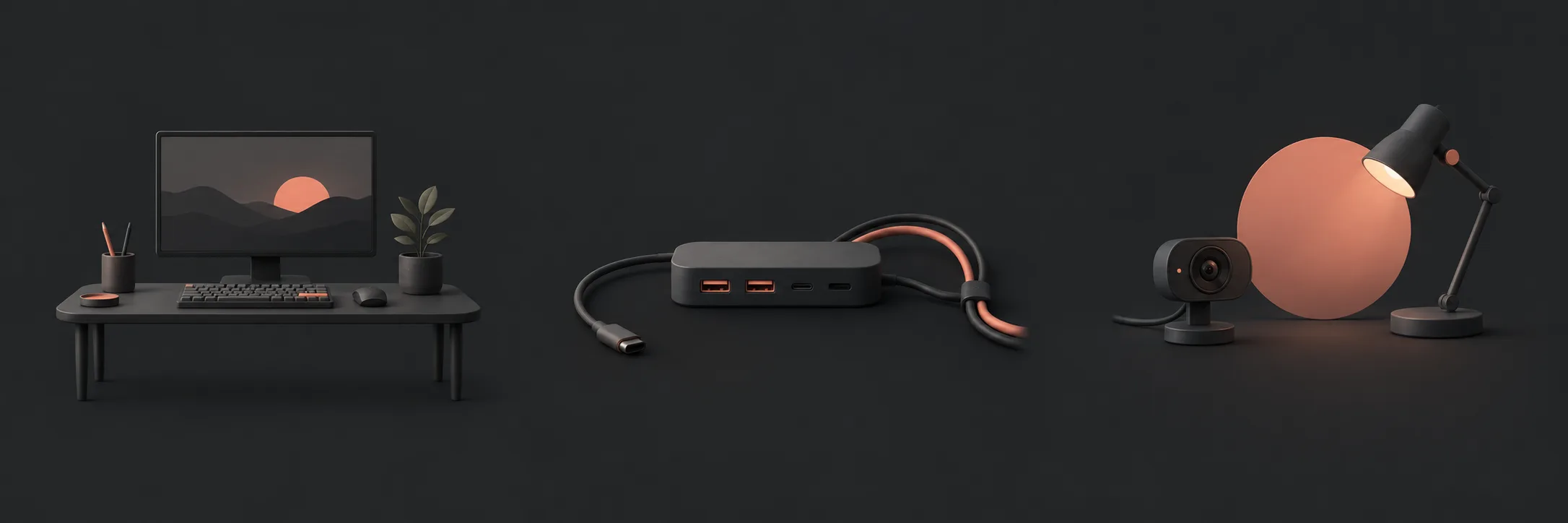 Take stock of the equipmentList the laptop or desktop, screens, dock, charger, keyboard, mouse, camera, headset and power points you actually use.Read this part
Create a stable workspacePosition the screen, input devices and chair around your ordinary tasks, while keeping ventilation and walkways clear.Read this part
Make a safe test passCheck power, cables, camera, sound and lighting with existing equipment before deciding that something needs replacing.Read this part
Take stock of the equipmentList the laptop or desktop, screens, dock, charger, keyboard, mouse, camera, headset and power points you actually use.Read this part
Create a stable workspacePosition the screen, input devices and chair around your ordinary tasks, while keeping ventilation and walkways clear.Read this part
Make a safe test passCheck power, cables, camera, sound and lighting with existing equipment before deciding that something needs replacing.Read this part
Inventory before you rearrange
Write down what is on the desk and what is connected to it. Include the computer, displays, dock, charger, keyboard, mouse, camera, speakers or headset, lamps and power boards. Note which items are used every day and which are occasional.
Then follow one ordinary workflow, such as opening documents, joining a call and switching between two applications. Observe where the setup interrupts you. This gives you a more useful starting point than a shopping list.
- Record the connector used by each important device.
- Mark cables that are loose, strained, damaged or across a walking route.
- Note whether the computer or dock has enough ventilation.
- Keep essential work saved before changing connections.
Arrange the desk for ordinary use
Put the main screen in front of you and roughly an arm's length away, then adjust it for comfortable viewing. Reduce glare from windows and lamps. Keep the keyboard and mouse where you can use them without repeatedly reaching across the desk.
Before buying a monitor arm, record the screen's weight and size, VESA pattern if it has one, the desk thickness and edge shape, and whether the proposed clamp or grommet method is suitable. Check the monitor-arm manufacturer's load limit and mounting instructions; a compatible connector alone does not prove that the desk or arm can safely carry the screen. Include clearance for cables and the desk's usable depth in the decision.
Change position during the day rather than treating one posture as a permanent solution. If discomfort persists, seek qualified advice rather than assuming a desk adjustment will solve it.
Run a simple everyday check
With your normal applications open, test the actions that matter: charging, displaying work, typing, pointing, hearing and being seen. Move around the desk as you would during a workday and check that cables stay clear.
| Check | Useful observation |
|---|---|
| Power | The charger reaches the computer without tension and the power board is not overloaded. |
| Workspace | The screen is readable, the mouse path is clear and frequently used items are reachable. |
| Calls | The camera view, sound and lighting are usable from the normal seated position. |
Make one change at a time and keep the original connection available until the new arrangement works.
Source: Safe Work Australia workstation set-up guidance.
What to read next
If you’d rather have local help, see our home office setup help.
For workspace positioning, see Safe Work Australia’s workstation set-up guidance. For a monitor arm or mount, follow the manufacturer’s instructions for the exact model and screen.