A controlled test can show whether one account can send and receive at that moment. It cannot prove delivery to every recipient or rule out later filtering. Use only an account you control or a trusted consenting contact. Do not include passwords, codes, private documents or attachments.
Start here
Make the test small and observable
Record the time and result at each step. A successful test is useful evidence, not a universal delivery guarantee.
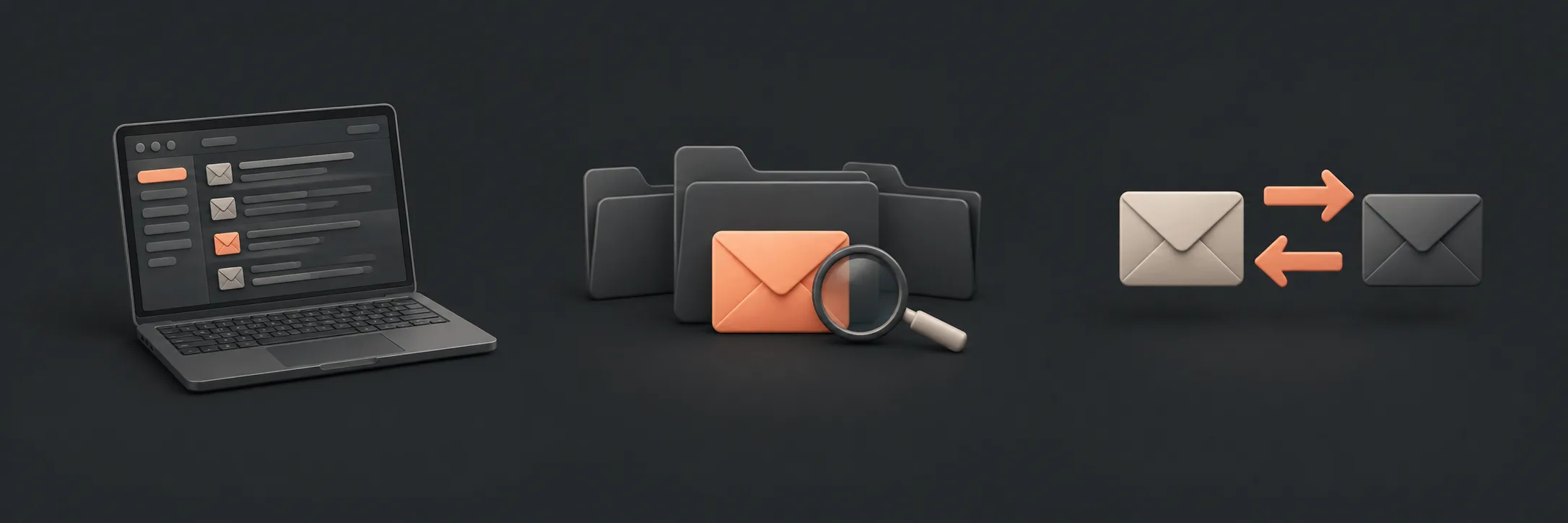 Establish the mailboxOpen webmail or the current app and confirm the exact From address, available storage and visible folders.Read this part
Inspect foldersCheck Inbox, Sent, Outbox, Drafts and Junk or Spam before and after the test.Read this part
Send and replySend one neutral message, wait for the reply, and record any bounce or private error.Read this part
Establish the mailboxOpen webmail or the current app and confirm the exact From address, available storage and visible folders.Read this part
Inspect foldersCheck Inbox, Sent, Outbox, Drafts and Junk or Spam before and after the test.Read this part
Send and replySend one neutral message, wait for the reply, and record any bounce or private error.Read this part
Prepare a safe, voluntary test
Choose a trusted consenting contact or a second account that you own. Confirm the exact From address and the recipient address before sending. Use a neutral subject that is easy to recognise, such as “Email check 15 September”, and a short message with no personal documents, passwords, one-time codes or attachments.
Note the local time and whether you are using webmail or an app. If the provider shows a storage warning, record it before testing. If you cannot access the account or are unsure which address is active, stop and handle account access separately.
A self-send can be useful, but it has limits: the same provider or device may not test every part of an outside delivery route. A second account or consenting contact gives a more informative comparison.
Compare what each mailbox records
Before sending, look at Inbox, Sent, Outbox, Drafts and Junk or Spam. After sending, check whether the message leaves Outbox and appears in Sent. The recipient should check Inbox and relevant filtering folders. Record the times rather than relying only on notifications.
The Sent folder shows that the app or provider accepted the message for sending. It does not prove that the recipient's provider accepted it, that it reached the Inbox, or that anyone read it. A notification is also not a complete delivery record.
If the message appears in webmail but not the app, compare the app's sync state. If it appears in the app but not webmail, check whether the app is showing a local-only copy. Do not remove or rebuild the account to make the displays match.
Send once, reply once, then interpret carefully
- Send the neutral message once after checking From and To.
- Record the send time and check Sent, Outbox and any bounce or private error.
- Have the recipient reply once, or reply from the second account you control.
- Record when the reply appears in Inbox and whether either side sees a Junk or Spam result.
If the outbound message fails in webmail and the app, the provider, account or recipient details may need attention. If webmail works but the app does not, focus on the app's display or sync. If the test succeeds, it only shows that this route worked at that time. It does not prove universal delivery, future delivery or read confirmation.
For app-specific background, see Google's Gmail troubleshooting guidance and Apple's Mail guidance. For Outlook.com storage and bounce limits, see Microsoft's guidance.
What to read next
If you’d rather have local help, see our personal email troubleshooting help.